

Google Ads, GA4 and Search Console together: first insights
How to connect Google Ads, GA4 and Search Console to Prospia, run the first analysis and read each insight with the numbers that back it up.
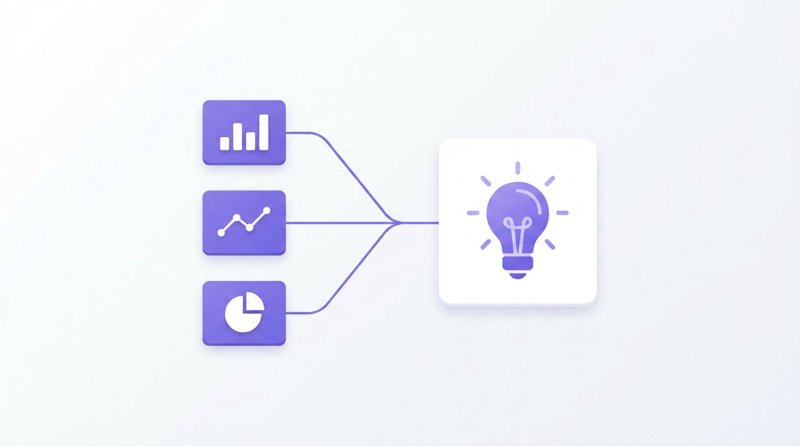
Google Ads shows spend, GA4 shows visits and Search Console shows searches. Each one answers its own question well. The trouble starts when the answer depends on all three, like “do the clicks I pay for reach the site?” or “is the page that shows most on Google the one that converts?”.
This guide shows how to connect the three accounts to Prospia, run the first analysis and read what it finds. It takes about ten minutes, Google sign-in included.
Why look at the three sources together
Some problems only show up when you cross the data:
- Google Ads counts 60 clicks in a month while GA4 records 8 sessions from google / cpc. Neither dashboard tells you that measurement is broken.
- GA4 credits a conversion to google / cpc, but the ads account shows zero. The conversion probably exists in GA4 and is not a primary goal in Google Ads.
- A page gets plenty of impressions in Search Console and almost no clicks, while the paid campaign sends traffic to another page that does not convert.
Prospia reads the three accounts, compares the numbers over the same time window and turns each finding into a card with the evidence next to it.
Before you start: what you need
The accounts are yours and are created at Google. Prospia cannot create them for you. Connect only the ones you already use:
- Search Console with the site verified.
- A Google Analytics 4 property receiving data from the site.
- A Google Ads account with billing set up. If the account has not finished its first campaign and billing, the connection shows an error.
Only an owner or admin of the Prospia organization can connect accounts.
Step 1: connect the accounts in Integrations
- Open Settings > Integrations. The Accounts tab shows one card per service: Google Search Console, Google Analytics and Google Ads.
- On the service card, click Connect.
- Sign in with the Google account that has access to the site, the property or the ads account.
- On the Google screen, tick every permission box and click Continue. If one is left unticked, part of the features will not work.
- Back in Prospia, tick the sites, properties or accounts it may use and click Save.
- The card now shows Connected. Repeat for the other two services.
There is no Google Cloud project to create and no key to paste. If a site or account is missing from the list, the Google login you used has no access to it: ask for access at Google and click Connect again.
What each connection allows:
- Search Console: reading searches, clicks and pages.
- Google Analytics: reading visits and conversions. Creating events or dimensions only happens when you ask.
- Google Ads: reading performance and, when you approve, creating or adjusting campaigns. New campaigns created by Prospia start paused.
Step 2: create an initiative (when it is worth it)
An initiative is one marketing front: a site, a product or a goal. It groups the data sources (the Search Console site, the GA4 property and the Google Ads accounts or campaigns) and the linked campaigns.
If the organization has a single account per network, the analysis runs right away. If it has more than one account on the same network, for example two Search Console sites, Prospia asks for an initiative so data from different sites does not get mixed.
To create one: Marketing > Initiatives > New initiative. Give it a name, write the goal (optional) and, in the initiative detail, fill in the data sources and click Save sources. Campaigns that already exist in Google Ads can be linked with Link campaign > Adopt a published campaign.
Step 3: run the analysis
In Marketing > Insights, click Run analysis now. With more than one account per network, pick the initiative and run it there. In an initiative detail, the Run analysis button does the same for that front.
The analysis usually reads the last 30 days and takes from a few seconds to a few minutes. When it ends, the screen shows how many cards are new and how many were updated. Running it again does not duplicate cards: a finding that still holds is updated in place.
Step 4: read an insight
Each card has four parts:
- The kind: opportunity, waste, SEO, SEO ↔ Ads or attention, with the priority (high, medium or low).
- The title, which states the finding in one sentence. For example, that delivery dropped in a campaign, or that a page has many impressions and a low CTR for its position.
- The evidence: the number rows that support the finding, each with its source (Ads, GA4 or Search Console) and time window. A delivery card, for instance, shows spend and impressions for the last 7 days next to the 7 days before.
- The suggested actions, in plain text, and the account the data came from.
A simple reading rule: start with the attention cards. They are usually about measurement (a conversion that never reaches Google Ads, no primary conversion goal, paid clicks that never become sessions). While measurement is wrong, the waste and opportunity cards are less reliable.
A card that does not apply to you can be dismissed. A card you solved can be archived.
Step 5: approve or reject the actions
When the analysis finds a concrete change for the ads account, it becomes an action in Marketing > Actions. Examples: negate search terms with no buying intent, turn off Display expansion in a Search campaign, pause an ad group, reallocate budget.
Each action shows its rationale and what will change. You click Approve and apply and confirm on a second screen, which warns that the change applies to the real account. Or you click Reject. Nothing is applied without your click, and the history keeps what was applied, when, and from which insight.
If the card behind an action stops being valid, the action expires on its own instead of sitting in the inbox.
The same flow from your AI assistant (MCP)
All of this also works from Claude or any other MCP client. In Settings > Connect via MCP you copy the URL of the platform connector and add it to your assistant (in Claude: Settings, Connectors, Add custom connector). The sequence looks like this:
getting_started: shows the active organization and which accounts are already connected.connections_list: the health of each connection (ok, attention or error) and how to fix a failure.initiative_createwith the sources, when there is more than one account per network.insights_generatewith theinitiativeId. The tool is idempotent: if the analysis is still running, it returns the samerunIdinstead of starting another one.insights_listto read the cards with their evidence.actions_listto see the proposed actions.
Read tools cost nothing. Write tools ask for confirmation, and on the consent screen you choose, account by account, between read only and read and write. The full walkthrough is in Connect via MCP.
Three use cases
An online store that turned on Google Ads a few weeks ago. The first analysis shows that no conversion action is enabled and primary. The campaign spends, but automated bidding has nothing to optimize for. Before touching keywords, the fix is measurement.
A service business with a company site and no ads. Only Search Console and GA4 are connected. The cards are about SEO: queries on page 2 with impressions, pages with a low CTR for their position, sign-in or test traffic inflating GA4 conversions.
An agency with three clients. One initiative per client, each with its own sources. The analysis runs per initiative and each card says which account every number came from.
Summary
- Connect Search Console, Google Analytics and Google Ads in Settings > Integrations, ticking every permission.
- With more than one account per network, create an initiative and fill in its sources.
- In Marketing > Insights, click Run analysis now.
- Read the attention cards first: broken measurement skews everything else.
- Approve or reject actions in Marketing > Actions. Nothing changes in the account without your click.
Next: how to review search terms and add negative keywords, how to find the landing page that wastes ad budget and how the weekly SEO report works. You can start on the Free plan and try Pro for 14 days without a card; see plans and pricing.